One section for each place it lives: the Mac menu bar, iPhone, widgets, StandBy by the bed, Siri, and the moment before you open a social app. Buttons and settings are named as they appear on screen.
Mac menu bar
On the Mac, BuZhan lives only in the menu bar: a drop and today’s count, with no Dock icon. You don’t need to switch apps; the input bar opens from wherever you are.
⌃⌥⌘Dopens the input bar in any app
Fig. 1BuZhan in the menu bar
Icon
A drop. The number next to it is today’s count, which resets at midnight.
Click it
Opens the menu. The menu items are listed below.
Notes
Development build on macOS; part of the menu bar.
Write one down and let it slide
In any app, press ⌃⌥⌘D. An input bar appears in the upper part of the current screen, reading Write it down and press Return to let it slide. You can type right away, without clicking.
Write down the grievance, up to 60 characters. Chinese input methods work as usual, candidate window and all.
Press Return. The bar disappears and the words turn into beads that fall from where they were. After about 3 seconds they are gone, and the count in the menu bar goes up by 1.
Changed your mind? Press Esc or click elsewhere. The bar closes and nothing is counted. While an input method is composing, the first Esc only cancels the half-typed text.
While the beads fall, you can keep clicking the windows below; there’s no need to wait. What you write is not kept; it is released when the animation ends. With more than one display, the bar appears on the current one.
What’s in the menu
Count
The top line, N drops slid off today.
Input
Write It Down… opens the same input bar as ⌃⌥⌘D.
Line
The two middle lines: the core line and its source.
Login
With Open at Login on, BuZhan appears in the menu bar each time you log in to your Mac.
Quit
Quit BuZhan, shortcut ⌘Q. After you quit, the drop disappears and ⌃⌥⌘D stops working until you open BuZhan again.
Open at Login
Click the drop in the menu bar and turn on Open at Login.
You’ll see BuZhan in System Settings › General › Login Items. On newer versions of macOS, this item is called Login Items & Extensions.
To stop it opening at login, turn off Open at Login in the same menu.
Why ⌃⌥⌘D and not the shorter ⌥⌘D? ⌥⌘D is the macOS shortcut that hides or shows the Dock, so BuZhan adds ⌃. BuZhan registers this shortcut with the system directly, so it doesn’t need Accessibility permission. It can’t be changed in this version. On the Mac, BuZhan lives only in the menu bar: there are no widgets and no Night Pond.
iPhone
Open BuZhan. The main screen shows the core line, its gloss and the source, with an input field below and today’s count under that.
Tap the field Write it down and let it slide and write down the grievance, up to 60 characters.
Tap Done on the keyboard. With a hardware keyboard, press Return.
The words turn into beads that fall from the field, with a light vibration as they go, and are gone after about 3 seconds. The number in N drops slid off today goes up by 1.
If you tap Done without writing anything, nothing is counted. The same count shows in the widgets and in Night Pond, and resets at midnight.
Below that on the main screen are Start Night Pond and How to Use. The app’s How to Use page has three sections, Night Pond, Siri and Before You Dive In, which match the sections of the same names on this page.
Adding widgets
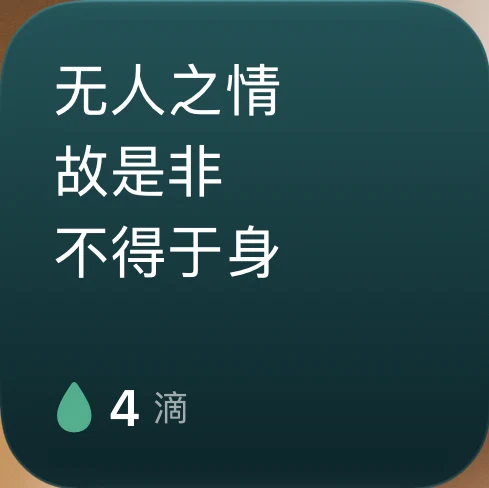
BuZhan’s widgets show today’s count and as much of the core line as each size has room for. On the Home Screen there is a small size; on the Lock Screen, circular, rectangular and inline; StandBy uses the small size too.
Fig. 2Home Screen, small
Small
The core line in three short lines, with a drop and today’s count at the bottom.
Circular
A drop and today’s count.
Rectangular
The second half of the core line (是非不得于身) and today’s count.
Inline
Above the time: today’s count with a short phrase.
Notes
Simulator screenshot, Simplified Chinese interface, 4 drops today.
Home Screen
Touch and hold an empty area of the Home Screen until the icons start to jiggle.
Tap Edit in the top-left corner, then Add Widget. On iOS 17, tap + in the top-left corner instead.
Find BuZhan in the list (or search at the top), tap it, then tap Add Widget.
Drag it where you want it and tap Done.
Lock Screen
Unlock your iPhone but don’t swipe up. Stay on the Lock Screen and touch and hold it.
Tap Customize, then choose the Lock Screen.
Tap the widget area below the time, find BuZhan in the list, and tap the circular or rectangular one to add it. For inline, tap the date line above the time and choose BuZhan.
Tap Done.
StandBy
Make sure Settings › StandBy is on. Lock the phone, connect it to a charger and turn it on its side to enter StandBy.
Swipe left or right to the page with two widgets side by side.
Touch and hold the left or the right one (you need to unlock first), then tap + in the top-left corner.
Choose BuZhan, add it, and tap Done.
In StandBy, third-party widgets can only appear as two small ones side by side, and they barely change. To fill the whole screen with the line, use Night Pond, in the next section.
Night Pond
Night Pond uses Live Activities, so it shows on the Lock Screen and in the Dynamic Island. While the screen is locked and charging on its side, StandBy shows the quote and today’s count full screen. It suits a bedside table. The four steps below are the same as on the app’s How to Use page.
Fig. 3Lock Screen
Shows
The core line and its source, with a drop and today’s count on the right.
Notes
Simulator screenshot, Simplified Chinese interface, 4 drops today.
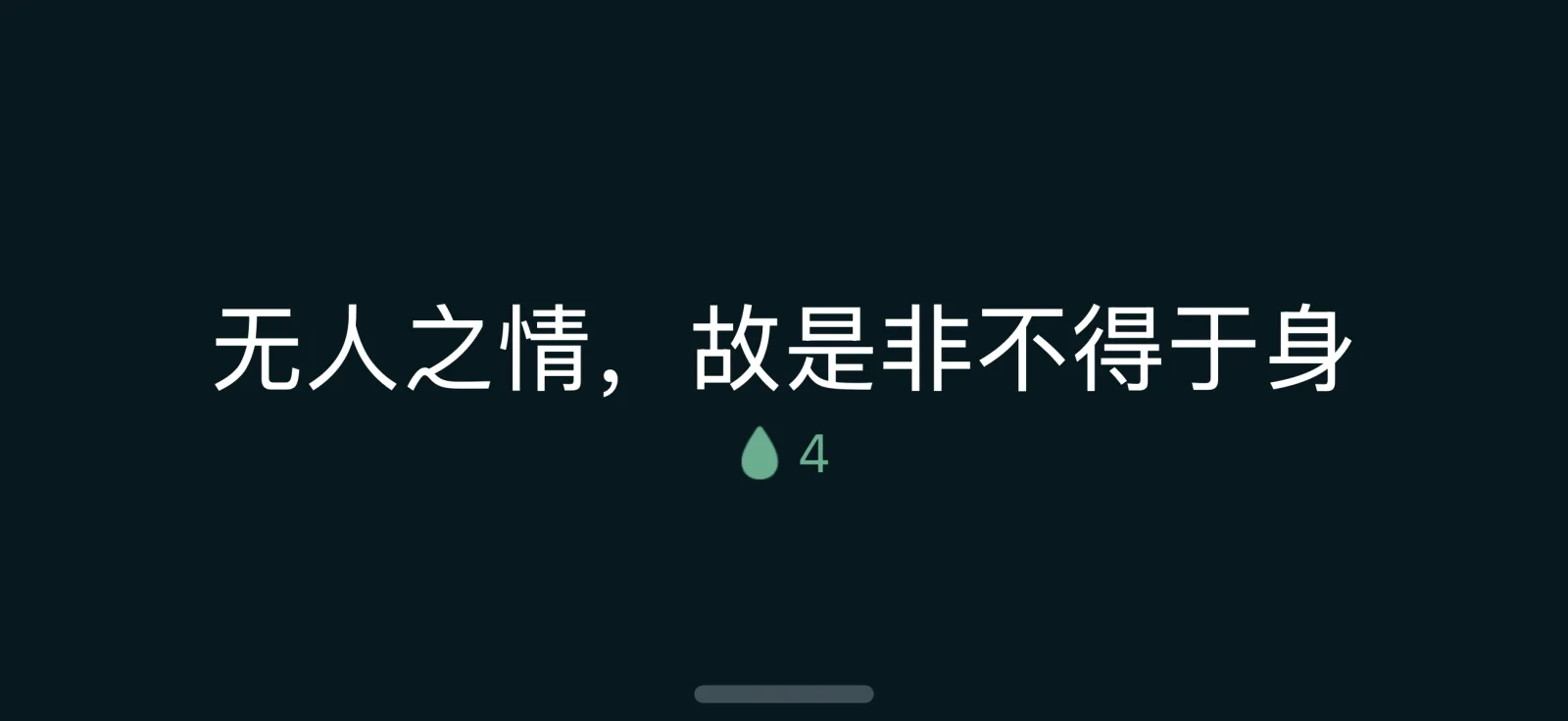
Fig. 4StandBy, full screen
Shows
Only the core line, a drop and today’s count.
Notes
Screenshot from an iPhone 16 Pro, Simplified Chinese interface.
Start it
Tap Start Night Pond. The first time, tap Allow on the Lock Screen.
Make sure Settings › StandBy is turned on.
Plug in a charger, set the phone on its side and leave it still, then press the side button to lock the screen.
If it isn’t full screen, tap the small icon at the top of the screen.
A Live Activity lasts up to about 8 hours, and then the system ends it. You can also touch and hold on the widgets page in StandBy, tap +, and add BuZhan.
To start Night Pond again after the system ends it, go back to the app and tap Start Night Pond. After midnight, the count on the Lock Screen and in the Dynamic Island shows 0. When you’re done, tap End Night Pond. The widget in StandBy works without Live Activities, but only at the small size, never full screen; the steps are under Adding widgets above.
If Live Activities are turned off
The Start Night Pond button on the main screen can’t be tapped, and the line below it says Live Activities are off.
In Settings, find BuZhan and turn on Live Activities. You can search for it at the top of Settings.
Go back to BuZhan and tap Start Night Pond.
If you didn’t tap Allow on the Lock Screen the first time, the same three steps apply. The Open Settings button on the main screen can only open the first page of Settings: BuZhan has no settings of its own, so iOS has no page of BuZhan’s to open. Scroll down to BuZhan.
Siri and the Action button
You can count a drop without opening the app: say one phrase to Siri, or press and hold the Action button. It counts one drop and takes no text.
Tell Siri
Tell Siri “Let it slide with BuZhan” or “BuZhan, let it slide”. If Siri doesn’t respond, use the phrase shown in the app’s How to Use.
Siri answers Slid off. N drops today. right away, with no follow-up question. The count goes up by 1, and the widgets and Night Pond update.
It only counts one drop; you don’t have to say what it was. There’s nowhere to say it, either: the action deliberately takes no parameters, because Shortcuts and Siri would write any parameter text into the system’s action history and logs, and the app can’t stop that. So nothing you write ever passes through Siri or Shortcuts. Saying “BuZhan, pause” shows the passage over the current screen, the same as Pause Before You Dive In in Before You Dive In below.
Use your own phrase
Open Shortcuts and create a new shortcut.
Add BuZhan’s Let Something Slide action.
Give it a name (like “Let go”), and then say that name to Siri.
Assign it to the Action button
On an iPhone with an Action button, open Settings › Action button.
Swipe to Shortcut.
Choose BuZhan’s Let It Slide, or the shortcut you made above.
Then press and hold the Action button to count a drop. Let It Slide on BuZhan’s page in Shortcuts and Let Something Slide in the action list are the same action.
Before You Dive In
Add a “remind me first” step for social apps like Instagram or X: every time you open one, you see the quote first. iOS doesn’t let one app block another, and BuZhan can’t create the automation for you. It uses a Personal Automation in Shortcuts, which you set up once yourself.
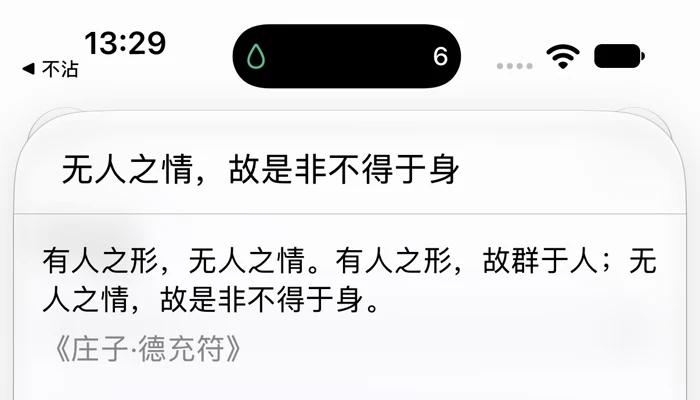
Fig. 5Pause Before You Dive In
Shows
The core line, then the full passage and its source, over the current screen. The system’s Done button closes it.
Notes
Simulator screenshot, Simplified Chinese interface.
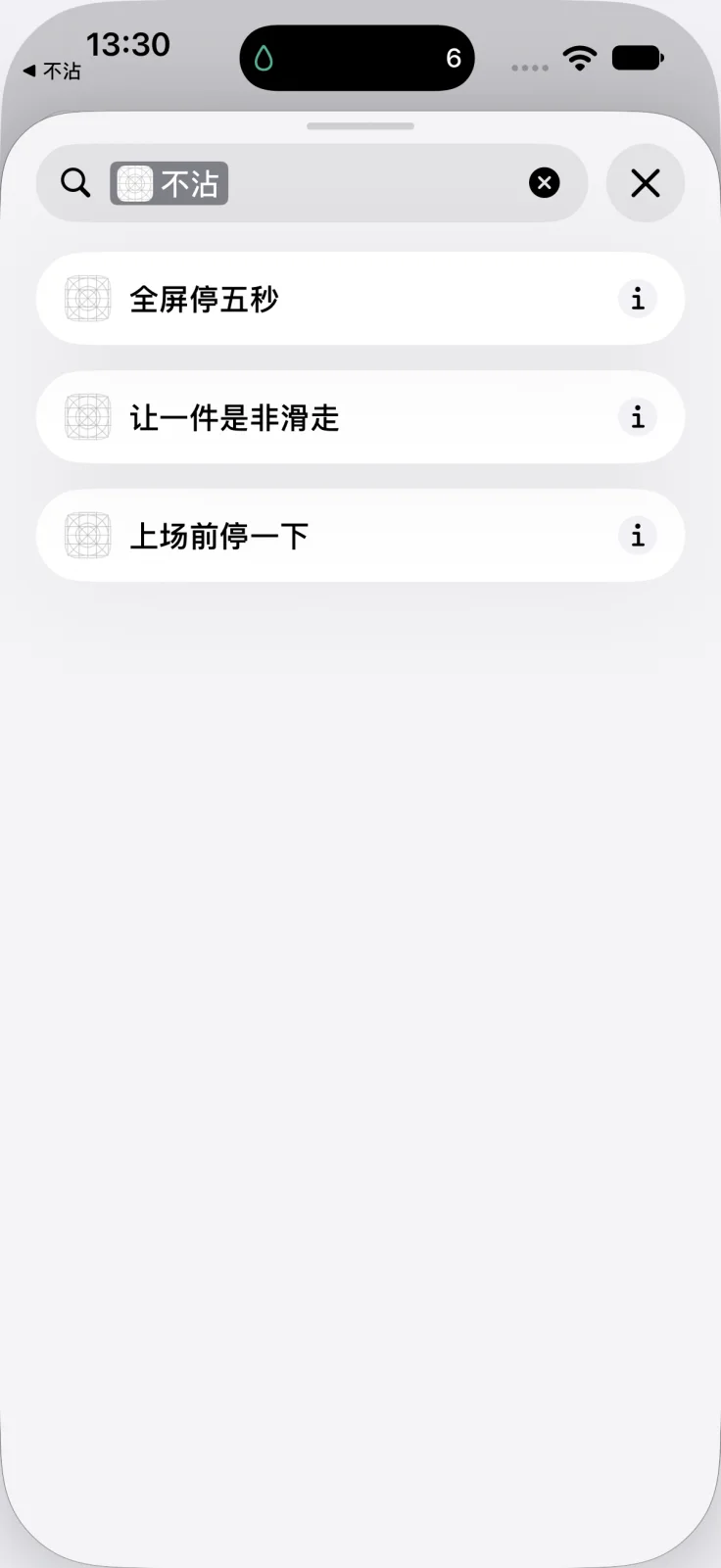
Fig. 6BuZhan in Shortcuts
Actions
Five-Second Full-Screen Pause, Let Something Slide, Pause Before You Dive In.
Notes
Simulator screenshot, Simplified Chinese interface.
Two actions: pick one
Pause Before You Dive In
Doesn’t switch apps. It shows the passage and source over the current screen; when you’ve read it, close it with the system’s Done button and carry on in the app you opened. We recommend this one.
Five-Second Full-Screen Pause
Switches to BuZhan and shows the passage full screen. After a five-second countdown, Dive In appears. iOS can’t switch you back to the app you were opening, so you go back yourself: tap the back link in the top-left corner, or swipe sideways along the bottom of the screen.
iOS 27
Open Shortcuts, go to Library › Automation, and tap +.
Search for “App” below and choose it; the first block becomes the trigger When App is Opened.
Tap “App” in that block and pick the apps to remind you about; leave Opened as it is.
Then search for Pause Before You Dive In, add BuZhan’s action, keep Show When Run on, and you’re done.
iOS 27 folds automations into Shortcuts itself: tapping + opens a new shortcut editor, and the old Run Immediately option is gone. When you expand the trigger block on the right, keep Automation on; Notify is up to you. Show When Run has to stay on for the passage to appear.
iOS 17–26
Open Shortcuts, go to Automation, and tap + to create a Personal Automation.
Choose App, pick the apps, and check Is Opened and Run Immediately.
For the action, choose BuZhan’s Pause Before You Dive In, and you’re done.
Run Immediately makes the automation run as soon as you open that app, without asking you first. For a firmer reminder, use Five-Second Full-Screen Pause instead of Pause Before You Dive In; the other steps are the same.
If you don’t want it anymore, delete it from the Automation list in Shortcuts. On iOS 27, that list is under Library › Automation. At the bottom of the app’s How to Use page, a button opens BuZhan’s page in Shortcuts directly.
Reduce Motion
With Reduce Motion on, the beads don’t fall. They fade out in place and are gone after about 3 seconds; the count still goes up by 1. BuZhan has no switch of its own: on both iPhone and Mac, it follows the system setting.
iPhone
Open Settings › Accessibility › Motion.
Turn on Reduce Motion.
Mac
Open System Settings › Accessibility › Display.
Turn on Reduce Motion.
The demo on this site’s home page does the same: if the system your browser runs on has Reduce Motion turned on, the beads fade out in place.
 BuZhan不沾